
See what changed in 1.7
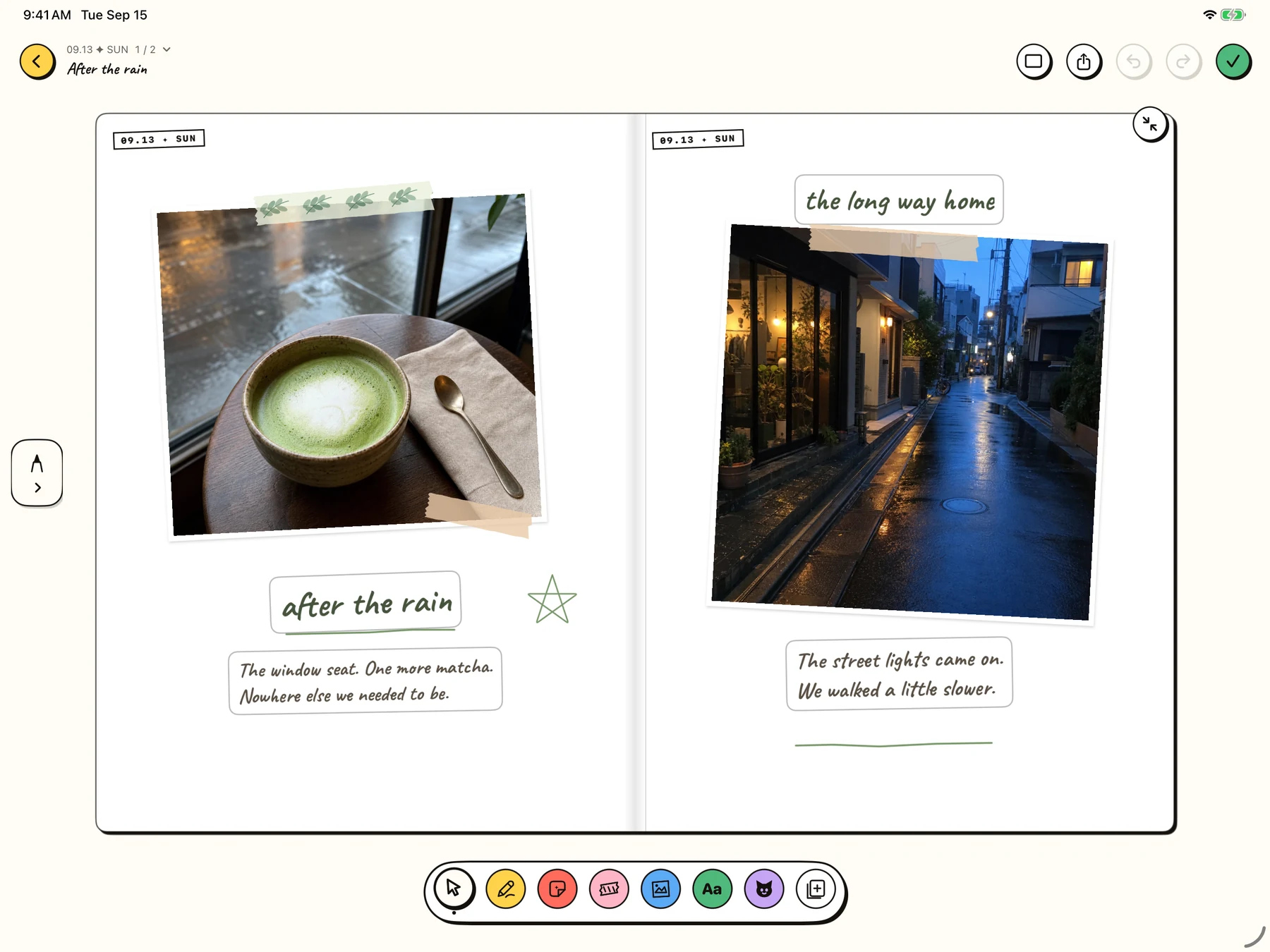
Draw on the paper, layer washi tape over a photo, and move a line of text into place. On iPad, two portrait pages open together.
The short version
- Use washi tape to hold a corner
- Leave a few marks with the drawing tools
- Place the sentence where it belongs
- Let a second page continue the story
Washi tape you can unroll
Pick a pattern, pull out a strip on the paper and lift to stick it down. Adjust its length, angle and appearance to frame a photo or connect two parts of a page.
Drawing, directly on the page
Brushes, colors and stroke widths let you add ink beside your photos. The eraser, ink selection and undo tools help you keep just the marks you want.
Text with a place of its own
Add separate text blocks where the story needs them. Move, resize and rotate a title or a short note without making the whole page follow a single text layout.
A two-page view on iPad
The iPad editor presents two portrait sheets side by side. Add another page to the same journal and let the next photograph or memory continue across the spread.